LLM Completion
LLM Completion calls a large language model and produces structured data output.
Basic usage
LLM Completion sends the configured prompt to the chosen Completion Model. The model generates a response, and the output is structured according to the Output Schema. Use it for text analysis, content generation, decision support, situation classification, data extraction and anything else that needs the model to think.
Configuration
The node's property panel:
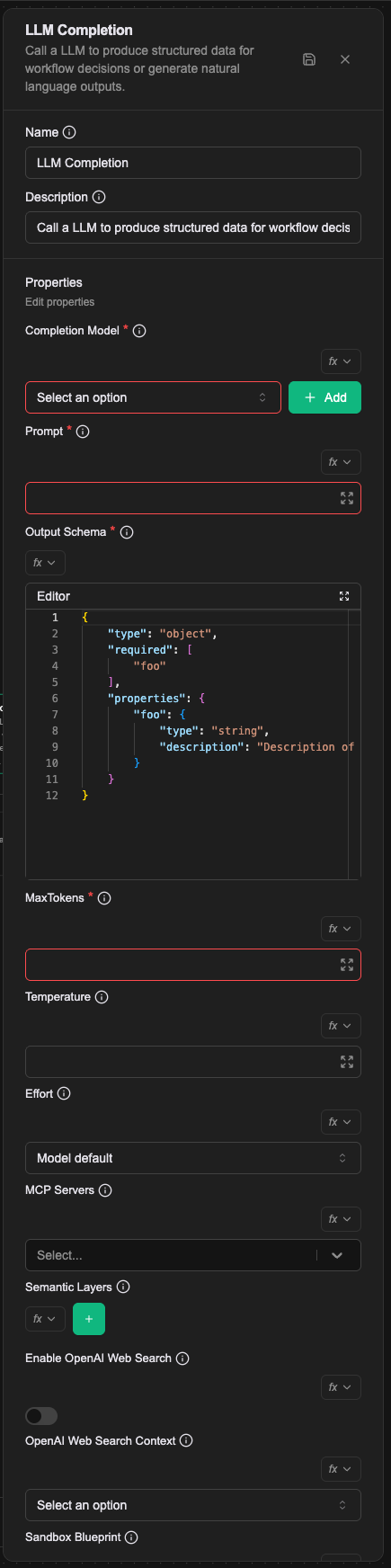
Name
The name shown on the canvas, used to identify this processor within the workflow.
Description
Explains what this processor is for, making the workflow easier to read.
Properties
Completion Model (required)
The name of the Completion Model resource to use. The resource has to exist first. OpenAI GPT, Claude and Gemini models are supported, among others.
Prompt (required)
The prompt sent to the model, describing the task's background and requirements. Supply the context and whatever memory is needed; the shape of the output is given by the Output Schema rather than by the prompt.
Value types
- Literal: enter the prompt directly
- Expression: build the prompt with a JavaScript expression
- Template: compose the prompt with template syntax and built-in functions
For how values are resolved, see Expression introduction — resolving values.
Output Schema (required)
The JSON Schema defining the model's output, so the response comes back in the structure you expect. The outermost level must be an object.
MaxTokens (required)
The maximum tokens for prompt plus response, which controls both response length and cost.
Temperature
(Optional) The model's temperature, controlling how random the answer is. Higher means more varied, lower means more consistent. The allowed range differs by completion model, so use that model's limits. Omitted, the model's default applies. Note that some models do not support temperature at all; do not set this field for those.
Effort
Reasoning effort: low, medium, high, xhigh, max, or auto to leave it to the model. It controls both thinking depth and overall token spend, so higher means slower and more expensive.
Unset, the model's default applies. Not every model supports every level, and sending a level a model does not support fails the turn outright. Some models — the fast, Haiku-tier ones in particular — do not accept a reasoning-effort parameter at all; for those, set disabled so the field is not sent.
MCP Servers
(Optional) The toolsets the model may use, chosen from the dropdown. Configuring toolsets gives the model every tool within them. In most cases it is also worth describing in the prompt when each tool should be called, so the model chooses correctly.
Displayed as MCP Servers in the editor; the config key when writing the Workflow CRD is toolsets.
Enable OpenAI Web Search
(Optional) Whether to enable OpenAI Web Search. Only for OpenAI models that support it. Once on, the model can search the web to answer. (See the OpenAI documentation.)
OpenAI Web Search Context
(Optional) How much content is retrieved from the web to help produce the response: 'low', 'medium' or 'high'. Only configurable when Enable OpenAI Web Search is on.
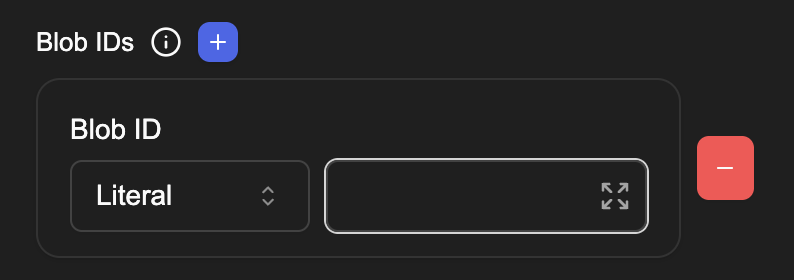
Blob IDs
The ids of images or files for the model to analyse. Click (+) to add several. Available only with a Completion Model that supports vision. The model analyses this content and answers from it.
Semantic Layers
A JSON array of the semantic layers to attach to the model. Each element has this shape:
[
  {
    "name": "<CR name>",
    "allowQuery": true,
    "allowWrite": false,
    "allowedCubes": ["orders", "order_items"]
  }
]
Compared with the singular Semantic Layer below, this field attaches several layers at once, letting one LLM call query across several databases. Use this field in new workflows.
Sandbox Blueprint
The name of a SandboxBlueprint to materialize a sandbox for this LLM call. Once set, the system makes sure the sandbox is Ready before dispatching the task, and the model gains the sandbox-bound builtin tools (bash, str_replace_editor) plus whatever Skills are discovered in the system prompt.
Leave it blank to run the call without a sandbox.
In the Workflow CRD
- name: proc-classify
  type: llm-completion
  labels:
    display_name: Classify the enquiry
  configs:
    - name: completionModel
      value: cm-builtin-balanced
    - name: prompt
      template: |
        The user said: {{{prevMessage}}}
        Decide which kind of enquiry this is.
    - name: outputSchema
      value: |-
        {
          "type": "object",
          "required": ["category"],
          "properties": {
            "category": {
              "type": "string",
              "enum": ["returns", "shipping", "other"]
            }
          }
        }
    - name: maxTokens
      value: "1024"
    - name: effort
      value: low
prompt can be written as a Handlebars template using template, and reading values with triple braces {{{variable}}} avoids HTML escaping. Every property defined in the Output Schema becomes a variable available to later processors.
Relationships
Success
Once the model has responded, the workflow continues from this connection point. The output variables follow the Output Schema's structure: every property defined there becomes a new variable name.
Failure
If the model call fails, the workflow continues from this connection point and a prevError variable holds the error.
Examples
Classifying a support question
判斷使用者輸入是否為客服相關問題。使用 Template 設定 Prompt:
你是客服分類助手,需要判斷使用者的問題類型。

使用者訊息:{{{prevMessage}}}

請分析這個訊息並分類。
Output Schema:
{
  "type": "object",
  "properties": {
    "isCustomerSupport": {
      "type": "boolean",
      "description": "是否為客服相關問題"
    },
    "category": {
      "type": "string",
      "description": "問題類別"
    }
  },
  "required": ["isCustomerSupport", "category"]
}
Analysing an image
使用支援視覺的模型分析使用者上傳的圖片。設定 Blob IDs 使用 Expression:
prevBlobs && prevBlobs.length > 0 ? prevBlobs[0].blobId : null
Prompt:
請分析這張圖片的內容,描述你看到的物體、場景和重要細節。
Output Schema:
{
  "type": "object",
  "properties": {
    "description": {
      "type": "string",
      "description": "圖片描述"
    },
    "objects": {
      "type": "array",
      "items": { "type": "string" },
      "description": "識別出的物體清單"
    },
    "scene": {
      "type": "string",
      "description": "場景類型"
    }
  },
  "required": ["description"]
}
Analysing conversation history
基於對話歷史分析使用者需求趨勢。使用 Template 取得對話歷史:
請分析以下對話歷史,了解使用者的需求模式:

{{{history 0 -1}}}

目前訊息:{{{prevMessage}}}
Output Schema:
{
  "type": "object",
  "properties": {
    "userIntent": {
      "type": "string",
      "description": "使用者意圖"
    },
    "emotionalState": {
      "type": "string",
      "enum": ["positive", "neutral", "negative"],
      "description": "情緒狀態"
    },
    "topics": {
      "type": "array",
      "items": { "type": "string" },
      "description": "討論主題"
    }
  },
  "required": ["userIntent", "emotionalState"]
}
Notes
- Output Schema has to be valid JSON Schema; the model's reply is constrained to match it.
- MaxTokens is required and is the ceiling on what a single call can cost.
Semantic LayersandBlob IDsare author-facing controls on the panel. The olderSemantic Layer Allow Query/Allow Write/Allowed Cubesoptions are no longer on it and are decided on the platform side.